
Manage the website and social links on your business listing.
Add one business website and up to 15 social-media profile links with an active subscription, then verify each destination before publishing.
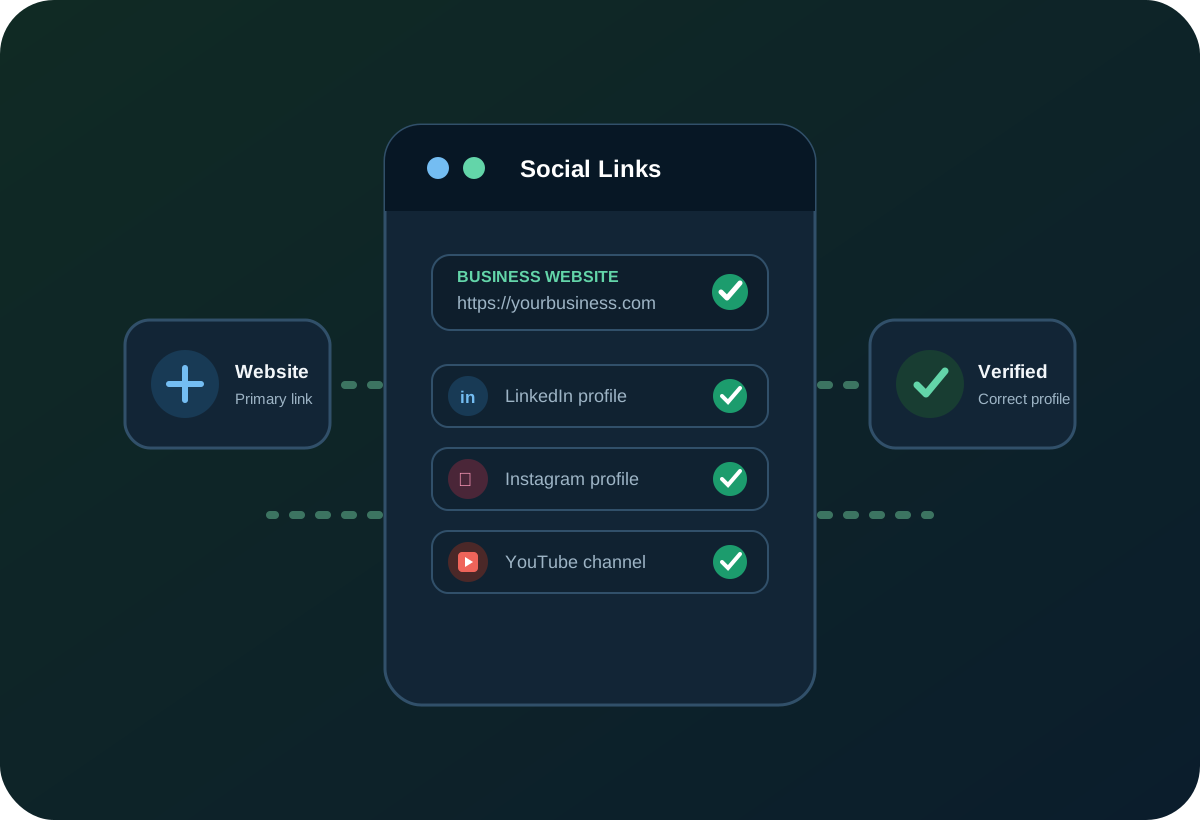
Connect the rest of your online presence to one business listing.
Members with an active annual subscription can attach one business website URL and up to 15 social-media profile links.
Your primary destination
Use your business website for bookings, quotes, contact requests, shopping, and other conversion-focused actions.
Credibility and discovery
Consistent social profiles give visitors more ways to understand your brand and can support a richer search presence over time.
Your Social Links, Social Profile bio, and Social Media Videos appear together on your published business listing, creating a more complete content-rich page.
Make your website the primary destination. Use social links to support credibility, discovery, and brand consistency.
Add and verify your links in five steps.
Use complete public profile URLs and review every destination before saving the listing changes.
-
Open Social Links
- Sign in to your account.
- Go to the Social Links page in your member area.
- Choose the business listing you want to update, if prompted.
You will see one field for your website and additional fields for supported social networks.
-
Add your business website URL
Paste the complete address of your business website into the Website field.
Examplehttps://www.yourbusiness.comImportantInclude
https://so the link can save and open correctly. -
Add your social-media profile links
For each platform you actively maintain, paste the full URL of the public profile page—not an embed code.
Profile URL examplesInstagram: https://www.instagram.com/yourhandle/Facebook: https://www.facebook.com/yourpageLinkedIn: https://www.linkedin.com/company/yourcompany/TikTok: https://www.tiktok.com/@yourhandleYouTube: https://www.youtube.com/@yourchannelTipOnly add profiles you actively maintain. A complete and current set of links builds more trust.
-
Verify your links
Use the Verify URL option next to a saved link when it is available.
- Click Verify URL.
- Confirm that the correct profile or website loads.
- Return to Social Links if the URL needs to be corrected.
-
Save your changes
After entering your website and social profile URLs, click Save or the update button shown on the page.
Your links will be attached to the business listing and displayed when the listing is published.
Use a short quality checklist.
- Keep branding consistent across platforms by using the same name, logo, and contact details.
- Prioritize your website link and make it the main destination for customers.
- Add a Social Profile bio so visitors immediately understand what you do.
- Add social videos with titles and descriptions to strengthen the listing page.
- Use only accurate links because broken or incorrect URLs reduce trust.
Troubleshooting
Confirm that the URL identifies a public profile and was placed in the correct platform field.
- The URL starts with
https://. - You pasted a profile-page URL—not a sign-in page, search page, or unrelated homepage.
- The profile is public and accessible.
- The link was pasted into the correct platform field.
- If problems continue, contact support and include the link you attempted to add.
A connected business listing that guides visitors back to your main website.
One website URL, up to 15 social profiles, a bio, and videos can work together to create a stronger and more engaging business page.