
Add, edit, and organize YouTube and Instagram videos.
Manage embedded videos on your business profile using simple public links—no embed code or HTML required.
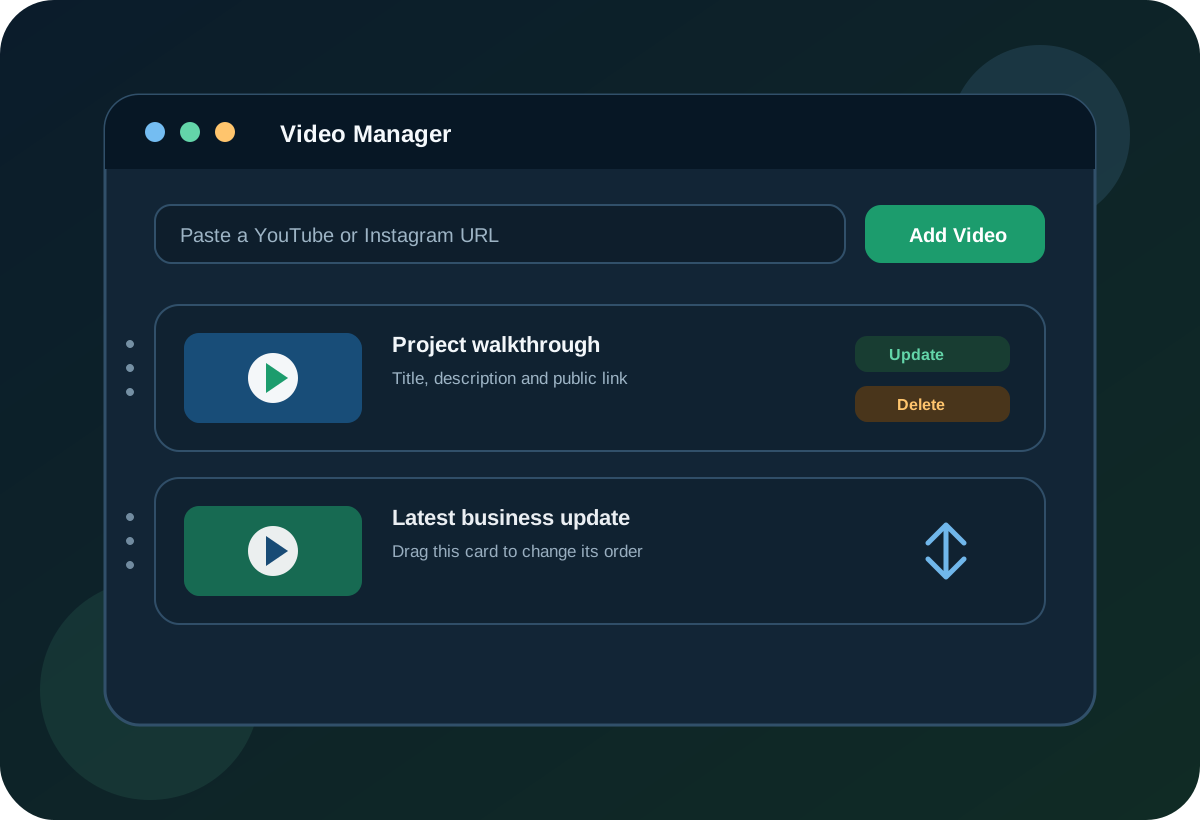
Use a public video URL from a supported platform.
You can add standard YouTube videos, YouTube Shorts, Instagram posts, and Instagram Reels.
Paste the link only
Copy the public video URL from YouTube or Instagram. Do not paste embed code, iframe markup, or other HTML.
Confirm public access
The video must be publicly accessible so the manager can generate a preview and visitors can play it.
Paste the video URL only. Do not paste embed code or HTML.
Complete the process in five clear steps.
Add the video first, then improve its presentation, arrange the display order, or replace and remove it as needed.
-
Add a new video
- Open your Video Manager.
- Select your Company / Profile.
- Select the Video Platform—YouTube or Instagram.
- Paste the video URL into the field.
- Click Add Video.
URL exampleshttps://www.youtube.com/watch?v=XXXXXXXXhttps://www.instagram.com/p/XXXXXXXX/ -
Add a title and description
After adding a video, add a short title and description so visitors understand what they are about to watch.
- Click the video to expand it.
- Enter a Title that is short and clear.
- Enter a Description with a brief summary and context.
- Click Update Video.
TipExplain what the video covers and why it matters to your audience.
-
Reorder videos with drag and drop
You can change the order of your videos at any time.
- Click and hold the video header.
- Drag the video up or down the list.
- Release it in the new position.
TipPlace your strongest or newest video at the top of the list.
-
Update or replace a video link
Replace the saved URL when you want the existing entry to display a different video.
- Expand the video panel.
- Replace the existing URL with the new video URL.
- Click Update Video.
The preview and thumbnail should refresh automatically after you save.
-
Delete a video
Remove a video when it should no longer appear in your managed list.
- Click Delete on the video.
- Confirm the deletion when prompted.
NoteThe confirmation step helps prevent accidental deletions.
Troubleshooting
Check the link and platform before trying the submission again.
- Make sure the video link is copied correctly and the video is public.
- Confirm that you selected the correct platform—YouTube or Instagram.
- Refresh the page and try again if the preview does not appear.
- If the issue continues, contact support and include the video URL you attempted to add.
A clearer, better-organized video section on your business profile.
Your saved videos can be titled, described, reordered, updated, and removed as your content changes.